
Audit Log

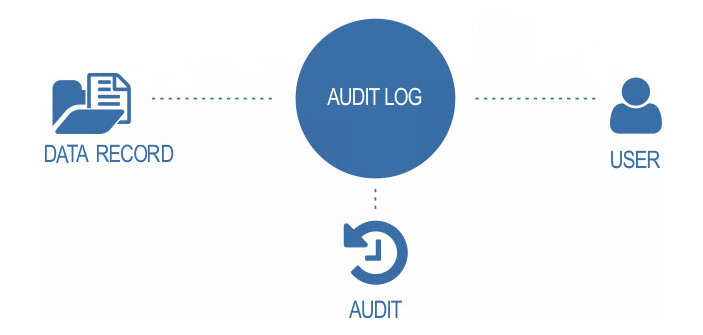
Payroll information is highly confidential and has to be audit on regular basis. It is important to figure out what type of changes have been implemented on a record, who made the modification and on what date.
However, with traditional method it is not possible to track all the modifications that has been implemented on the record throughout its life cycle but when was that record entered, or who made a particular modification, or which stage of its life cycle is the record going through at that point of time, you can find out it with Audit Trial.
Audit trail is the security-relevant chronological record, set of records, and/or destination and source of records that provide documentary evidence of the sequence of activities that have affected at any time a specific operation, procedure, or event.
The history of each and every record residing in the application repository is tracked right from the time it is entered.
- The Audit Log allows you to produce the following reports:
- Audit Log Report
- User Session Log Report
Audit Log report
You can use the Audit Log to record security-related system information such as changes to user master records or unsuccessful logon attempts. This log is a tool designed for auditors who need to take a detailed look at what occurs in the BITPLUS PayMaster System. By activating the audit log, you keep a record of those activities that you specify for your audit.
The Audit Log provides for long-term data access. You can manually archive them at any time.
- You can record the following information in the Audit Log:
- Successful and unsuccessful dialog logon attempts.
- Changes to system records.
Printing Audit Reports in BITPLUS PayMaster
There are some standard options available in Audit Log reports. This Section give brief description about the filtering options of Audit Log Report.
Filter data by User List

Audit Log reports include a User List option, which offers filtering method on based of login selection. You can choose to run a report that includes single or multiple login, based on your selection.
Summary / Detail

Another filtering method is based on the type of report detail. You can choose to run the report with detail description by selecting “Yes” option or just review the summary data by selecting “No” option.
Filter Ranges and Filter Methods

Boxes are available for setting beginning (From Date) and ending (To Date) ranges for filtering the Audit Log information that will be included in the reports.

Module filtering option also available for filter the data by selected module.
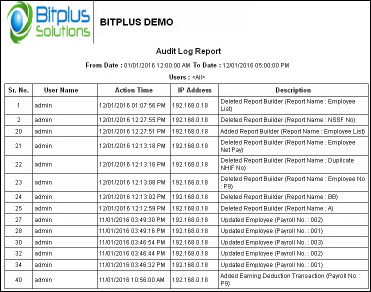
- The report contains the following:
- User Name
- Action Type
- Action Time
- Description
- To print the Audit Log Report:
- Select Audit Log report from the Audit Log Reports menu lays at Payroll Reports --> Audit Log from the Report menu bar.
- Filter the report data with the User List Filter.
- Select the Show Details option to run a report that includes summary or detail data.
- Select the Module option to run a report that only includes selected module data.
- Enter the Date periods in From Date & To Date boxes to filter the data for the Date range selected.
- When all the criteria for the report have been defined select Preview to preview the information.
- The Print preview window appears, Export the the report in PDF, Word or Excel format from export drop down menu.
- Open the report in the appropriate application.
- Setup the print page and Print the report.
User Session Log report
The User session log report shows information about user id login detail. Contain User login id related information such as User Name, Login In time, Login Out Time, IP address of Login machine. With this report you can figure out who made the modification on a record and on what date.
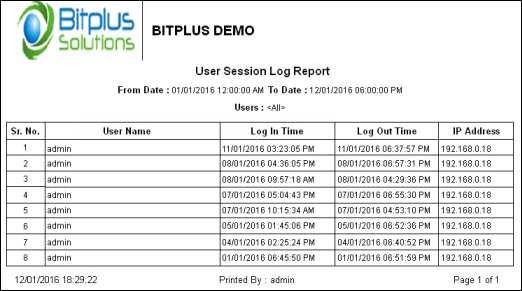
- The report contains the following:
- User Name
- Log In Time
- Log Out Time
- IP Address
- To print the User Session Log Report:
- Select User Session Log Report from the User Session Log Report menu lays at Payroll Reports --> Audit Log from the Report menu bar.
- Filter the report data with the User List Filter.
- Enter the Date periods in From Date & To Date boxes to filter the data for the Date range selected.
- When all the criteria for the report have been defined select Preview to preview the information.
- The Print preview window appears, Export the the report in PDF, Word or Excel format from export drop down menu.
- Open the report in the appropriate application.
- Setup the print page and Print the report.